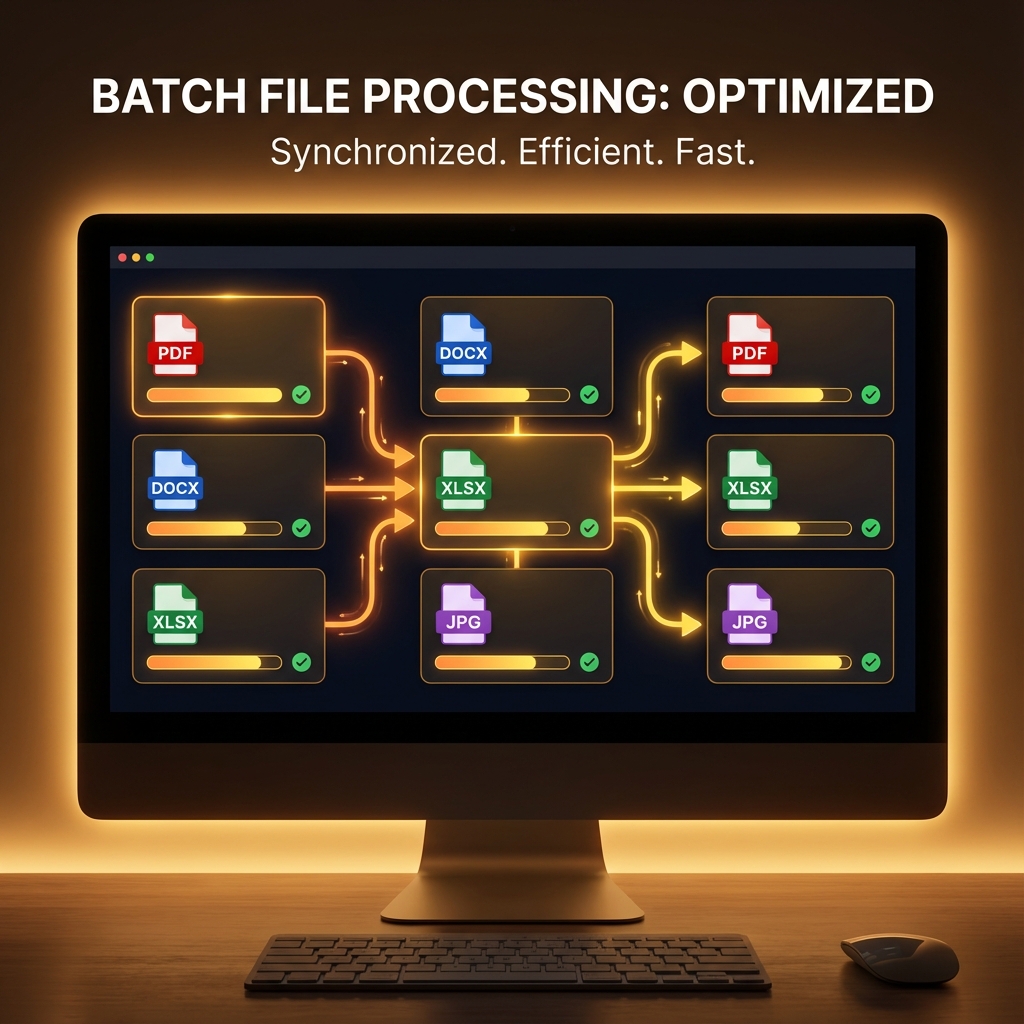
The Problem with One-at-a-Time Processing
Imagine you have 50 images to compress, 20 PDFs to merge, or 100 photos to resize. Processing them one by one would take:
- • Hours of repetitive clicking
- • Constant monitoring and intervention
- • High risk of errors and inconsistency
- • Wasted time that could be spent on creative work
What is Batch Processing?
Batch processing allows you to select multiple files and apply the same operation to all of them simultaneously. Instead of processing files one by one, you process them all at once with a single click.
Time Savings Example
| Task | One-by-One | Batch Processing | Time Saved |
|---|---|---|---|
| Compress 50 images | 25 minutes | 2 minutes | 92% |
| Resize 100 photos | 40 minutes | 3 minutes | 92.5% |
| Convert 30 images | 15 minutes | 90 seconds | 90% |
ToolsWallet Batch Processing Tools
1. Batch Image Compression
Our Image Compressor handles unlimited images simultaneously:
- • Upload multiple images at once (drag & drop supported)
- • Set compression quality once, apply to all
- • Preview all results before downloading
- • Download as individual files or ZIP archive
- • Supports JPG, PNG, WebP, GIF formats
2. Batch Image Resizing
Perfect for preparing photos for government forms, social media, or web use with our Image Resizer:
- • Resize hundreds of images to exact dimensions
- • Maintain aspect ratio or force specific sizes
- • Preset sizes for passport, Aadhaar, social media
- • Batch download all resized images
3. Batch Background Removal
Remove backgrounds from multiple product photos or portraits using our AI Background Remover:
- • Process entire product catalogs at once
- • AI automatically detects subjects in each image
- • Export all as transparent PNGs
- • Perfect for e-commerce and marketing
4. Batch Image Format Conversion
Convert multiple images between formats with our Image Converter:
- • Convert JPG to PNG, PNG to WebP, etc.
- • Process mixed format inputs
- • Maintain quality during conversion
- • Batch download in new format
5. Batch PDF Operations
Work with multiple PDFs efficiently:
- • Merge multiple PDFs into one document
- • Compress multiple PDFs simultaneously
- • Split PDFs in batch mode
Real-World Batch Processing Scenarios
E-commerce Product Photos
Upload 200 product photos, remove backgrounds, resize to 1000x1000px, compress to 200KB, and download—all in under 5 minutes.
Government Form Applications
Resize family photos for passport applications (35x45mm), Aadhaar cards, and PAN cards in one go.
Social Media Content
Prepare event photos for Instagram (1080x1080), Facebook (1200x630), and Twitter (1200x675) simultaneously.
Website Optimization
Compress and convert all website images to WebP format for faster loading times.
Best Practices for Batch Processing
1. Organize Files First
Group similar files together before processing. Process product photos separately from personal photos.
2. Test with a Few Files
Before processing 100 files, test your settings on 2-3 files to ensure the output is what you want.
3. Use Consistent Naming
Name your input files consistently (e.g., product_001.jpg, product_002.jpg) for easier organization after processing.
4. Leverage ZIP Downloads
When processing many files, use the "Download All as ZIP" option to save time.
Why ToolsWallet Batch Processing is Superior
- • No File Limits: Process as many files as your browser can handle
- • Client-Side Processing: All files processed locally for privacy
- • Parallel Processing: Multiple files processed simultaneously
- • No Upload Time: Files never leave your device
- • Free Forever: No quotas, no subscriptions
Start Batch Processing Today
Stop wasting time on repetitive tasks. Try our batch processing tools: